


How to Buy USDT on Binance P2P: Step-by-Step Guide
Last updated:
| Steps | 6 |
| Payment method | Bank transfer or a local e-wallet, depending on your country |
| Protection | Binance holds the seller's crypto until both sides confirm |
| Where your USDT lands | Funding wallet |
| Key rule | 3 cancellations in one day = buying blocked for the rest of that day |
What is Binance P2P?
P2P stands for peer-to-peer: you buy USDT from another Binance user and pay them directly with a local payment method such as a bank transfer or an e-wallet. Binance acts as the middleman that protects the trade: as soon as you place your order, the platform locks the seller's crypto in escrow and only releases it once both sides have confirmed the transaction.
That makes it a good fit if you don't want to use a card, or if your bank declines crypto transactions.
Before you start
- Verify your account. See how to verify your Binance account.
- Turn on two-factor authentication (2FA).
- Have a payment method in your own name ready. A bank account or e-wallet registered in the same name as your verified Binance account.
How to buy USDT on Binance P2P (6 steps)
Step 1: Open P2P
On the app's home screen, tap Add Funds, then P2P Trading.
Step 2: Choose a mode: P2P or Express
At the top of the screen you can switch between:
- P2P mode: you pick the seller yourself and see their price, payment methods and terms.
- Express mode: the system automatically matches you with the best available price. You choose the coin and amount, tap Select Payment Method, then Place Order.
For your first trade, we recommend regular P2P mode, since you get to choose the seller and read their terms.
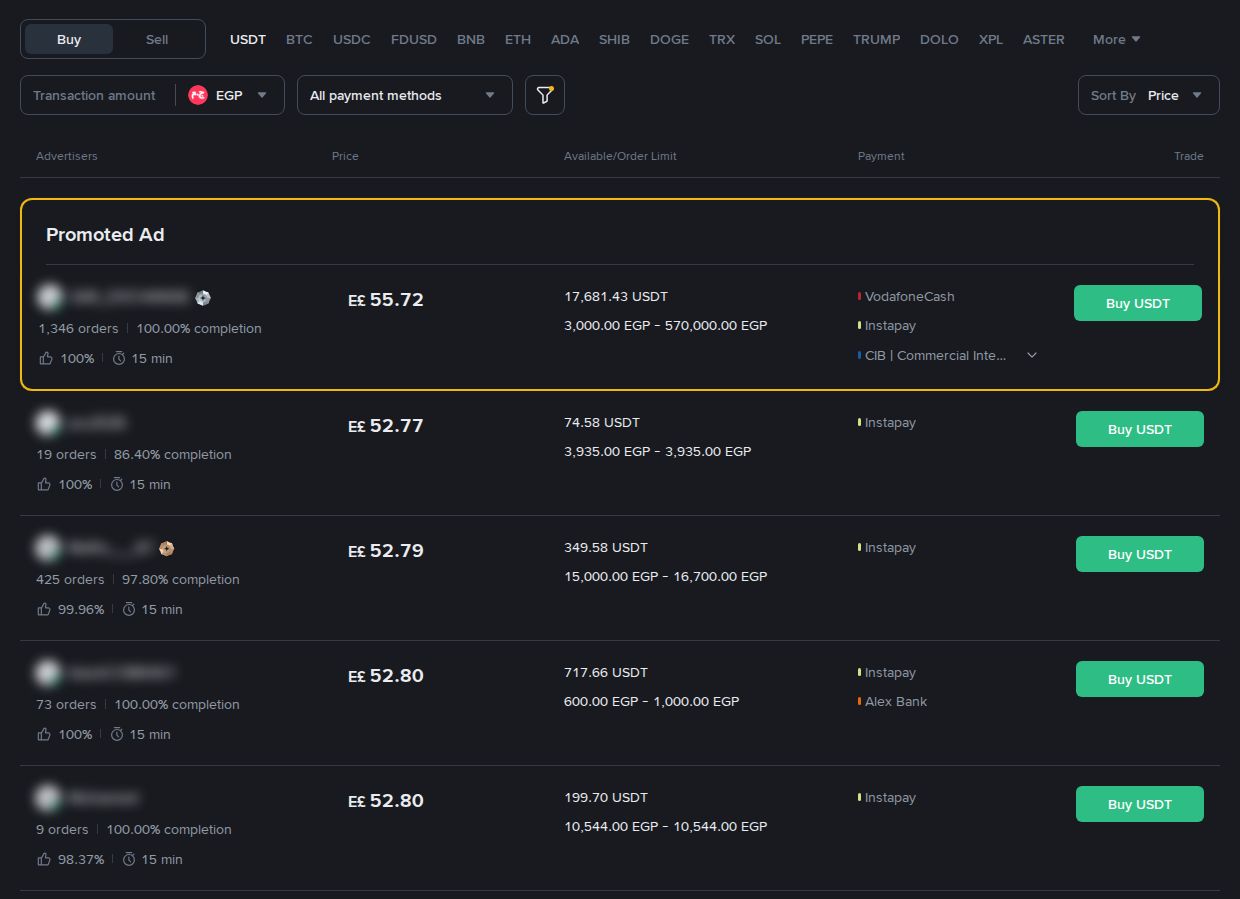
Step 3: Choose your local currency and a seller
Select USDT and your local currency, then filter by a payment method you have. When choosing a seller, check:
- The price, plus the minimum and maximum order size.
- The payment methods they accept.
- Their number of trades and completion rate, shown in the ad.
- Their terms, written in the ad.
Step 4: Tap [Buy] and place your order
Tap Buy next to the seller, enter the amount of USDT or the amount in your currency, read the seller's terms, then tap Place Order. From this moment, Binance holds the seller's crypto in escrow.
Step 5: Pay the seller, then tap [Transferred, notify seller]
Tap View Payment Details and send the exact amount to the seller's account shown there, from your own account. Once the transfer has actually gone through, tap Transferred, notify seller. The order status changes to Releasing.
Step 6: Receive your USDT in your Funding wallet
The seller checks that the money has arrived in their account, then releases the crypto. You'll find your USDT in your Funding wallet. If you want to trade with it, move it to your Spot wallet.
Open Binance and buy your first USDT →
How to protect yourself from P2P scams
- Only pay from an account in your own name, and only to the account shown in the order details inside Binance.
- Never leave the Binance chat. If a seller asks you to switch to WhatsApp or Telegram, or to pay outside the order, cancel and report them.
- Don't write words like "USDT" or "crypto" in the bank transfer reference unless the seller's terms say so; follow only the instructions in the ad.
- Don't tap [Transferred] before you pay, and don't cancel after you've paid.
- Ignore any "confirmation" message you get outside the app. The real order status only shows up inside Binance.
- Start with a small amount with any seller who's new to you.
If the seller doesn't release the crypto after you've paid, use the Chat button to contact them inside the order, or the Help button to reach Binance support.
More: The most common P2P scams and how to avoid them.
Rules you need to know
- 3 cancellations in one day = buying is blocked on your account for the rest of that day.
- To cancel an order: Cancel Order → choose a reason → Confirm Cancellation.
- Available payment methods depend on your country and currency. See buying USDT in your country.
Common problems and fixes
I paid, but the seller hasn't released the crypto
- Message them using Chat inside the order. If they don't reply, tap Help to contact support. Don't cancel the order.
I can't find sellers who accept my payment method
- Try Express mode, switch to a different payment method, or choose a seller with a lower minimum order.
Buying has been blocked on my account today
- This is usually down to 3 cancellations on the same day. Wait until the next day.
My USDT arrived, but I can't see it in my Spot wallet
- P2P purchases go to your Funding wallet. Move them to Spot if you want to trade.
Looking for a Binance alternative?
- OKX P2P: How to buy USDT on OKX P2P · Open OKX →
- Bybit P2P: How to buy USDT on Bybit P2P · Open Bybit →
Frequently asked questions
Is Binance P2P safe? Binance holds the seller's crypto in escrow for the whole trade and only releases it once both sides have confirmed. The real risk comes from stepping outside the order flow, for example paying outside the app or tapping "Transferred" before you've paid.
Where do I find my USDT after buying? In your Funding wallet.
What's the difference between Express mode and P2P mode? Express automatically picks the best available price for you, while in P2P mode you choose the seller yourself.
Does the payment account have to be in my name? Yes. Pay from an account in the same name as your verified Binance account.
What happens if I cancel more than once? 3 cancellations in one day block buying on your account for the rest of that day.
The seller asked me to talk on WhatsApp. Should I agree? No. All communication and payment should happen inside the order on Binance.
Do I need a verified account to use P2P? Yes. Verify your account and turn on two-factor authentication before your first trade.
Next step: withdraw from Binance
Bought some USDT? Learn how to sell it for your local currency or send it to another wallet:
How to withdraw from Binance, step by step →
Last updated: 10 October 2026 · Sources: we checked every step against Binance's official help pages on buying and selling via P2P (updated 20 April 2026). Button names and payment methods vary depending on your app version and country.
Related tutorials
- Binance Tutorial for Beginners 2026How to use Binance as a beginner: create an account, get verified, deposit by card or P2P, buy USDT and cash o…
- How to Create a Binance Account in 2026Sign up for Binance free with email, phone, Google, Apple or Telegram. Password rules, the verification code a…
- Binance Identity Verification 2026How to verify your Binance account: accepted documents in each Arab country, the face scan, review times and w…
- Binance Spot Trading for Beginners 2026How to spot trade on the Binance app: choosing a pair, market vs. limit orders, canceling open orders, and Con…
- Bitget P2P 2026Buy USDT on Bitget P2P in the app: add a payment method in your name, pick a seller, tap Buy Now and Paid, use…
- How to Buy USDT on Bybit P2P in 2026Buy USDT on Bybit P2P: choosing an advertiser, the payment timer, the Payment Completed button, the bank-name …
- KuCoin P2P 2026Buy and sell USDT on KuCoin P2P: add payment methods, use Fast Trade or pick a seller, tap Confirm Payment, an…
- How to Buy USDT on OKX P2P in 2026Buy USDT on OKX P2P: pick a merchant, tap I have paid and upload proof, mind the order timer and post-purchase…